- Home
- Documentation
Overview
SkyleeBot helps World of Warcraft guild officers manage their communities through Discord integration and a powerful web dashboard. The system consists of:
Discord Bot
- Raid events with sign-up buttons and automatic posting
- Guild application system with private channels
- Absence tracking right from the raid embed
- Sim uploads to WowAudit and WowUtils with
/sim - Gold gambling minigame for downtime fun
Web Dashboard
- Full raid event management with calendar and attendance views
- Custom application forms, review interface and archive
- Per-boss rosters posted straight to Discord
- Timezone, API keys and bot behavior configuration
- Absence overview and tools like sim logs and gamble history
Key Benefits:
- Streamline guild operations and save time
- Improve raid attendance and organization
- Better track member participation and absences
- Simplify recruitment with automated applications
Getting Started
Follow these steps in order — most bot features need the dashboard setup first.
- Invite the bot to your server using the Invite to Server button on the main page: https://skylee.io. Please grant all selected permissions for optimal bot performance.
- Log in to the dashboard at https://skylee.io/dashboard using your Discord account and select your server. You need the Ban Members permission in the server to manage it.
- Set your timezone on the Setup page. This is required before you can create raid events — all raid times use this timezone.
- Optional — add API keys on the Setup page (WowAudit,
Raider.io, WowUtils) to enable
/simuploads and Raider.io lookups in applications. - Create your first raid event with
/raid-eventin Discord or from the dashboard's Raid events page. - Recruiting? Run
/setup-applyin Discord, then customize the application form on the dashboard's Applications page.
Important:
Setting the correct timezone is crucial for proper event scheduling. The bot will refuse to create raid events until a timezone is configured.
Dashboard Guide
The dashboard at skylee.io/dashboard is where you configure the bot and manage your guild. Log in with Discord and pick your server — only servers where you have the Ban Members permission can be managed. Use Refresh Servers in the sidebar if a server you just got permissions on doesn't show up.
Overview
Your guild at a glance:
- Pending Applications — open applications with a direct link to their Discord channel
- Upcoming Events — weekly and one-time raid events, including whether they have been posted to Discord yet
Setup
- Timezone Settings — the timezone all raid times are entered and displayed in. Required before creating raid events.
- API Configuration — optional keys for external services
(each field has a show/hide toggle):
- WowAudit ApiKey — lets
/simupload sims to your WowAudit wishlists. Find it on wowaudit.com in your team's settings under API. - Raider.io ApiKey — enables Raider.io character lookups in applications. Get one from your raider.io account settings.
- WowAudit ApiKey — lets
- WowUtils Settings — paste your WowUtils API key (one key
per group, from your group's settings on WowUtils), then load and select your WowUtils Group. Once set,
/simalso pushes sims to your group's loot board.
Raid events
Four tabs: Events, Calendar, Attendance and Settings.
Events
- Weekly and one-time events listed separately, with filters for raid tier, difficulty and skipped events, plus an archive
- Create Raid Event — title, description, raid difficulty, channel, weekly repeat, how many days ahead it gets posted, duration (hours) and up to two roles to mention
- Edit or delete any event (deleting removes the Discord message and excludes it from attendance)
- Skip a single week of a weekly event instead of deleting the whole series
- Lock or unlock sign-ups manually
- Roster — build a per-boss roster from the signed-up players; it is posted to your configured roster channel in Discord
Calendar
Month view of all raid events, with member absences overlaid so you can see who is away on raid days.
Attendance
Attendance percentage per member, calculated automatically every day. Filter by raid and difficulty to spot your most consistent raiders.
Settings (raid behavior)
- Raid Event Locking — when sign-ups lock automatically: never, a number of hours before raid start, after the roster is posted, or a custom rule
- Roster posting channel — where raid rosters get posted
- Auto Signup for Raiders — automatically sign configured raiders up for new events
- Ask for a reason on Decline — members must give a reason when declining an event
- Require a reason for Absence — makes the reason field mandatory when members record an absence
- Reason channel — channel where decline and absence reasons are posted for officers
- Button Settings — customize the sign-up buttons shown on raid embeds
- Post raid reminders — post a reminder in the chosen channel before each raid starts, pinging the event's mention roles
- DM members who haven't signed up — before the raid, DM members holding the event's mention role who haven't picked a role or declined (members with DMs disabled are skipped)
- Reminder channel — where the reminder is posted; None disables the channel reminder
- Reminder lead time — how long before raid start reminders and DMs go out; pick from preset steps (10 minutes up to 24 hours, default 1 hour)
Applications
- Applications list — review open applications and browse the archive, including full transcripts of the application channels
- Form Configuration — build the form applicants fill in: a title, an optional Raider.io character input, and custom fields (label, placeholder, short or paragraph answers, required or not) with a live preview. Turn off the Raider.io input to free up a slot for one more custom field.
- Application Settings — the DM messages sent on accept and decline, the role to assign on accept, and the role allowed to write in application channels.
Role hierarchy:
For the bot to assign a role on accept, the SkyleeBot role must be above the assigned role in your Discord server's role list.
Absences
A list of all member absences (member, date range, reason) with the option to delete entries. Absences are created by members in Discord using the Absence button on raid events, and they also appear on the raid calendar.
Tools
- Audit Sim Logs — history of all
/simuploads with the character name and a link to the simulation - Gambles — every gamble run in the server (date, amount, winner, loser, status), with the option to remove a gamble from the stats
Support
Links to this documentation and the Discord support server, where you can get help, discuss with the community and request features.
Bot Commands
SkyleeBot uses Discord's slash command system. Commands marked Ban Members are only visible to members with that permission.
Raid Management
| Command | Description | Permission |
|---|---|---|
/raid-event | Create a raid event with sign-up buttons. Options: channel, title, repeat (weekly), date (YYYY-MM-DD), time (HH:MM, 24-hour, in your configured timezone) and optional description, mention, mention2 roles to ping. Requires
a timezone configured in the dashboard. | Ban Members |
/raid-delete | Delete a raid event — pick it from an autocomplete list, then confirm. Deleting a weekly event stops all future occurrences; to skip just one week, use the dashboard's Skip instead. | Ban Members |
/subscribe | The current channel gets a notification whenever a raid event is created, updated or deleted. | Ban Members |
/unsubscribe | Stop the raid event notifications. | Ban Members |
Applications
| Command | Description | Permission |
|---|---|---|
/setup-apply | Post the application embed with an Apply button. Options: channel (where
the embed goes), category (where private application channels are created), title, description and optional button-label. Customize the form itself on the dashboard. | Ban Members |
/edit-apply | Update the title, description and/or button label of the existing application embed — all options optional. | Ban Members |
/delete-apply | Remove the application setup and the embed message. Run /setup-apply to start
fresh. | Ban Members |
Sims & Fun
| Command | Description | Permission |
|---|---|---|
/sim | Upload a Raidbots or QuestionablyEpic sim by URL. It is sent to WowAudit wishlists and/or your WowUtils loot board — whichever is configured in the dashboard Setup — and you get a per-service success/failure result. | Anyone |
/gamble | Start a gold gambling session. Optional amount of gold (20 – 20,000,000, defaults
to 20,000). Others join with the Join button; rolling starts automatically after 5 minutes
or when the creator presses Start. | Anyone |
/gamblestats | Show the server's top 5 winners and losers by net gold. | Anyone |
Editing a Raid Event
Click the Edit button on any raid event embed. A form opens where you can change the event's title, description, time and how many days in advance it gets posted. You can also edit events from the dashboard's Raid events page.
For Members
Everything regular guild members interact with — no permissions needed.
Raid Sign-ups
Sign up using the buttons on the raid event embed. Clicking a button you're already signed up for removes your sign-up. Once an event is locked, sign-ups can no longer be changed.
🛡️ Tank
Sign up as a Tank for the raid
💚 Healer
Sign up as a Healer for the raid
⚔️ DPS
Sign up as DPS for the raid
⏰ Late
You'll attend, but you'll be late
❌ Decline
You cannot attend. If your server has decline reasons enabled, a short form asks why first.
📅 Absence
Record a longer absence — see below
Recording an Absence
Going on vacation? Click the Absence button on any raid event. A private panel opens where you can:
- See your current absences and cancel any of them
- Pick a From and To date from the dropdowns
- Press Confirm and optionally give a reason (your server may make the reason required)
You are automatically marked as declined on every raid event in that date range — including events that get posted later. Cancelling an absence does not re-sign you up; rejoin events manually.
Applying to a Guild
Click the apply button on the application embed (the label may vary, e.g. "Apply"). A form opens — fill it in and submit. A private channel is created for your application where officers can follow up. If you're accepted you receive a DM and may automatically get a role; if declined you receive a DM with the guild's message. The channel is removed afterwards.
Gold Gambling
When someone starts a session with /gamble:
- Join (or Leave) during the 5-minute joining phase — at least 2 players are needed
- The creator can press Start to begin rolling early
- Press Roll when the rolling phase starts — anyone who hasn't rolled gets an automatic roll when the timer ends
- Highest roll wins, lowest roll loses — the loser owes the winner the difference between their rolls in gold
Check the Stats button or /gamblestats to see the server's biggest
winners and losers.
Application System Walkthrough
A step-by-step guide to recruiting with SkyleeBot.
Setting Up Applications
- Create a Discord channel where your application embed will be posted
- Create a Discord channel category where the new application channels will be created
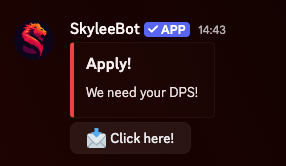
- Anywhere on your Discord run the setup command: /setup-apply
- The bot creates an embed message that applicants can open new applications with
- On the dashboard's Applications page, build your custom form (fields, Raider.io input) and configure the accept/decline messages and the role to assign on accept

Reviewing Applications
When someone applies, a private channel is created in your category. From there:
- Talk to the applicant directly in the channel, or simply Accept or Decline
- A transcript of the channel is saved automatically
- The applicant receives a DM with your configured accept or decline message
- On accept, the configured role is assigned automatically
- The application channel is removed after the decision
You can also review open applications and browse the archive (with transcripts) on the dashboard's Applications page.
Automatic Behaviors
Things SkyleeBot does on its own once configured — no commands needed:
- Event posting — raid events are posted to their channel a few days before the raid (3 by default; change it per event with the Edit button or the dashboard).
- Weekly repeat — events created with repeat enabled come back every week automatically. Skip a single week from the dashboard.
- Notifications — channels subscribed with
/subscribeare notified whenever an event is created, updated or deleted. - Sign-up locking — events lock automatically based on your Raid events → Settings rule (hours before start, after the roster is posted, or never).
- Raid reminders — shortly before a raid starts the bot can post a reminder in a chosen channel (pinging the event's roles) and DM members with those roles who haven't signed up. Configure in Raid Events → Settings.
- Roster posting — rosters built on the dashboard are rendered as images and posted to your configured roster channel.
- Attendance — calculated daily from event sign-ups and shown on the dashboard's Attendance tab.
- Absences — a recorded absence automatically declines the member on every event in its date range, including events posted later.
- Auto sign-up — with Auto Signup for Raiders enabled, configured raiders are signed up to new events automatically.
FAQ & Troubleshooting
The bot says "This server is not set up" or "Timezone Not Configured"
Open the dashboard, select your server, go to Setup and save a timezone. Raid events can't be created without one.
/sim says the server is not set up
for Raidbots/QuestionablyEpic
Add a WowAudit API key and/or a WowUtils API key (plus group) on the dashboard's Setup page. At least one of the two is required for /sim to work.
I can't see my server in the dashboard
You need the Ban Members permission in that server, and the bot must be invited to it. Try Refresh Servers in the sidebar after permissions change.
Accepted applicants don't get their role
Check your Discord role hierarchy: the SkyleeBot role must be placed above the role it should assign, in Server Settings → Roles.
We're not raiding next week — should I delete the weekly event?
No — deleting a weekly event stops all future occurrences. Use Skip on the dashboard's Raid events page to skip just that week.
Where do I get the API keys?
- WowAudit — on wowaudit.com, in your team's settings under API
- Raider.io — from your raider.io account settings
- WowUtils — in your WowUtils group settings (one key per group)
Still stuck?
Join the Discord support server — direct support, community tips and a place to request features.